Events
Events track all changes to a project and its elements over time. Every time an item in a project is created, updated, or deleted, and event is created.
Many of the detail view pages in Deploy (Dashboard, Location, Site, etc) have an "Events" card at the bottom which lists the last 100 events related to the item being viewed.
If you want to view more detail about the events for a particular item, or you want a complete view of all events for your projects, you can visit the Global Events page.
Global Events
The Global Events page is an interactive table of events from all your projects. It provides for easy searching and filtering across the different fields/columns to allow users to find and track specific activities.
Navigating to the Global Events page is as easy as:
- In the sidebar navigation, select
- Click on the hamburger button in the top right corner of the screen
- Select
The table on this page will display, in chronological order, all events from all projects to which you have access.
Columns
By default, some of the columns in the Events table are not shown.
You can change which columns are visible by clicking the table settings button in the corner of the Events card .
Expand the Columns option, and then toggle the visibility of each column by clicking on it's name.
Filtering
Just above the table is an area which displays the Active Filters. Whenever you have filters for the events you are viewing, you will see filter elements there which will look something like project_id=1. Once added, filters can be removed by clicking the "" on them.
In many of the cells, you will see small "quick-filter" icons (). Clicking any of these icons will add a filter for the item so you will only see that type of item in its column.
For more customized filtering, click on the filter button in the corner of the Events card . This will reveal an additional row above the table header row which has a series of filter fields.
Pick a column you want to add a filter against, and click the logic button on the field to select you logic you want to use.
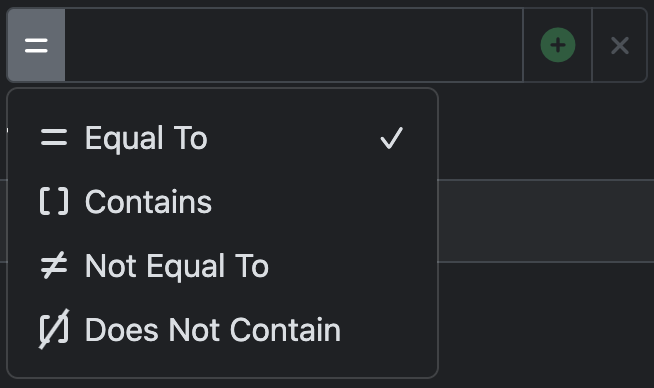
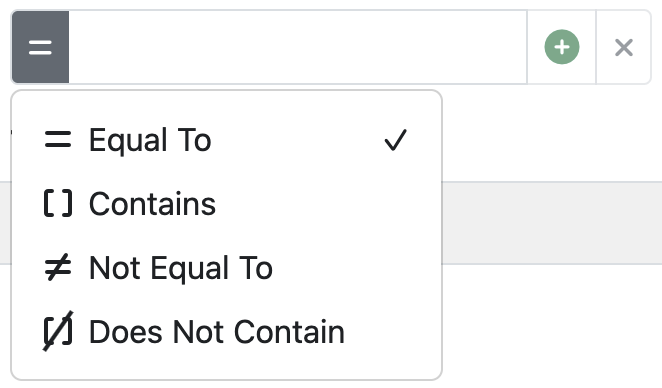
Once the filtering logic is selected, enter your search text into the field, or select a choice from the drop down.
Note
Some of the drop down fields also allow custom text entry
Once the field is filled out, click the add button to add a new filter to the Active Filters. Or click the clear button to clear the field.
You should now see a new filter which has been added to the Active Filters list. The table should reload with the new filtered event data.


Adding more filters will add more elements to this list. If you want to remove any one of the filters, just click the "" on it.
Timeframe Selection
If you want to change the timeframe of events displayed, click on the filter add button in the Time column.
Doing so will open a time range selector widget like the below.
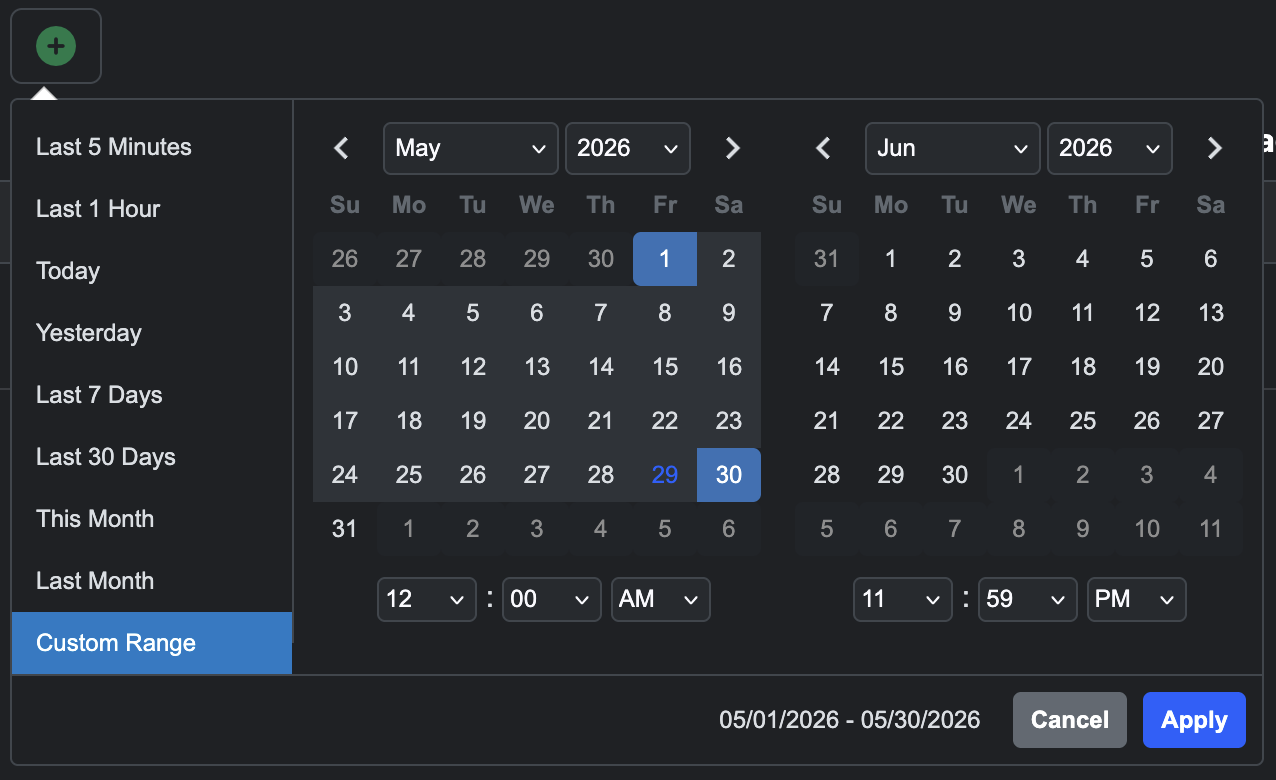
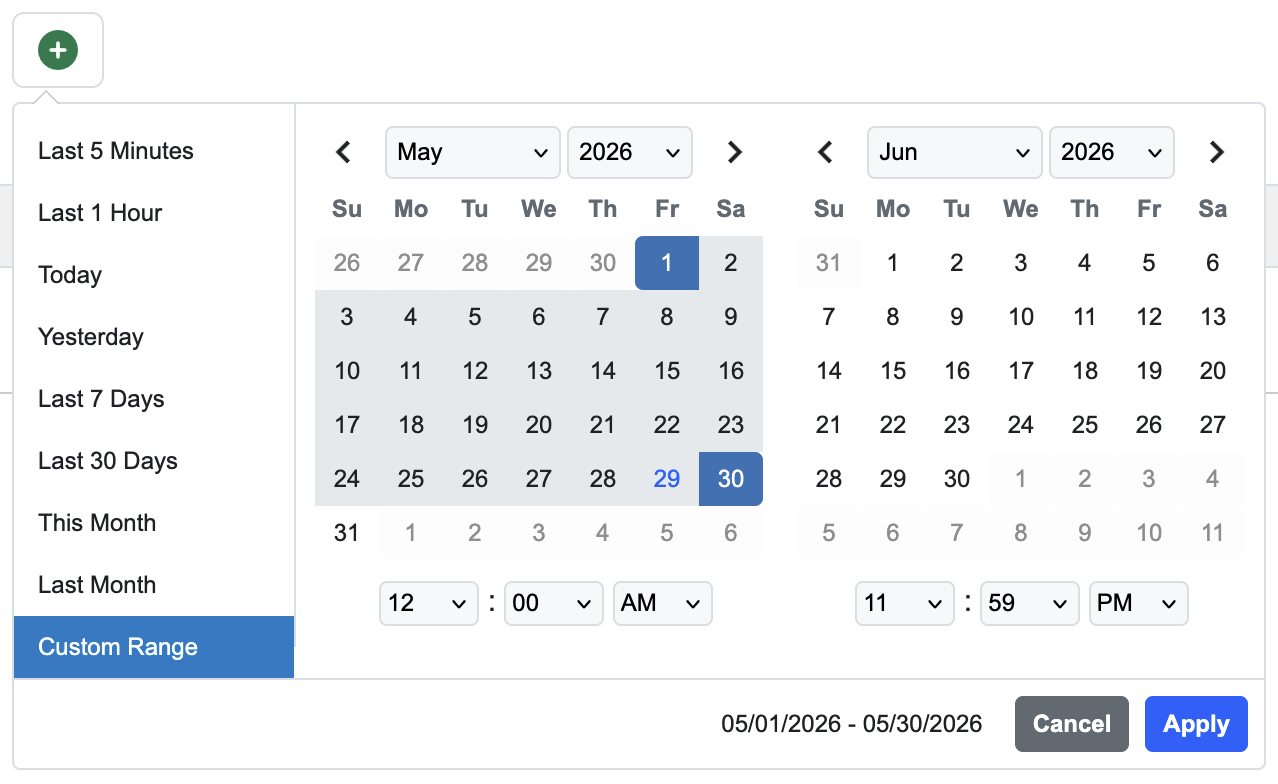
From this widget, you can select the date and timeframe for the events you want to see. There are some convenient / pre-made selections on the left of the widget which can be chosen, or a more customized range can be selected with the calendars and time fields.
Once submitted, the time range selector widget will add two filters to the Active Filters list: one to exclude events older than the start date/time, and another to exclude events newer than the end date/time.
Just API Filters
The filtering functionality used on the Events page leverages the same standard API filtering features that are documented in API Filtering. If you're looking to use the filtering features of Deploy's API, the event filtering tools can be a good way to get familiar with them.
Event Page Links
Each time you add a filter, change a column visibility setting, or change the number of rows displayed, the URL in your browser is updated with these settings.
These view settings for the Events page are portable and are reproduced when the link is visited.
This allows you to set up a certain view of the events table, and share that view with somebody else by sending them the URL.